ImageFlow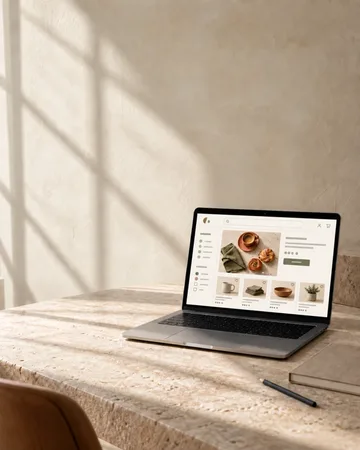
Website
Optimize for Web
Smaller files for your website or blog, with quality you control.
WebP · 82% quality
Too large. Wrong size. Wrong format.
Resize, compress, convert, and crop images in seconds. Everything runs right in your browser.
Fix an imageOr choose a tool

1831 × 859
One image.
Multiple formats.

1200 × 560
1080 × 850
320 × 420
Ready for web,
social, anywhere.
Processed on your deviceYour files stay in your browser.
No accountStart using tools instantly.
No ImageFlow watermarkYour finished files are yours to use.
Start with the destination
Choose where your image is going. Start with settings prepared for that destination.
Website
Smaller files for your website or blog, with quality you control.
WebP · 82% quality
Social media
Start with a square post sized for Instagram.
1080 × 1080 · JPG
Marketplace
Prepare a 3000 × 2000 Etsy listing photo with your whole product in frame.
3000 × 2000 · JPG
Need a different result?Resize, compress, convert, crop, remove metadata, and more.
Browse all 66 tools and presetsThe recurring problem
The same edits. The same settings. All over again with every new batch.
The same steps. For every new batch.
And then
do it all again…
Studio will let you reuse one saved workflow with every new batch.
Start with a new batch of images.
Studio will apply your saved steps to the whole batch.
Download your prepared, organized files.
ImageFlow Studio Coming soon
It is planned to make repeated image preparation faster.
Explore StudioLocal by default
Every tool available today processes images directly in your browser. None of these tools uploads your files to ImageFlow servers.
How local processing worksAvailable tools keep files on your device.
Current tools don’t store your images.
Your original file remains unchanged.
AI upscale and generative tools are not available today. If one needs remote processing, it will be labelled before upload and show who processes the file, when it is deleted, and any usage cost.
Your browser reads it locally.
Resize, convert, compress, and more.
All done in your browser.
Get your optimized file. Your original stays untouched.
Complete catalog
Find exactly what you need, or browse by category.
All tools are freeNo account required.
Processed locallyYour files stay with you.
No watermarkYours to use.
The essentials for quick image edits.
Rotate, flip, crop, adjust canvas, and arrange images.
Compress, inspect metadata, and prepare smaller files.
Adjust colors, sharpen, apply effects, and more.
JPG, PNG, WebP, AVIF, HEIC, SVG, ICO, and PDF.
Instagram, Etsy, websites, and other destinations.
Not sure what it’s called? Try “image too big”, “website”, or “remove GPS”.
WORKFLOW STUDIO
Studio will let you save a workflow and run it on every new batch of images.
Studio is coming soon.
QUESTIONS, ANSWERED
Quick answers to common questions about ImageFlow.
Yes. All 66 public tools are free. You do not need an account, and ImageFlow does not add a watermark.
No current public tool uploads source files, output files, filenames, thumbnails, embedded metadata, or watermark assets to ImageFlow. Processing runs in your browser. A future remote action will be labelled before any upload. See how local processing works.
No account is needed to use the public tools or download results. Studio is coming soon and will require an account only when you save and reuse workflows.
The catalog includes tools for JPG, PNG, WebP, AVIF, HEIC, SVG, ICO, and PDF. Each tool lists its supported inputs and outputs and reports when a browser cannot process a format.
No. ImageFlow creates a separate result for you to download. Your original file stays untouched.
Choose a destination if you know where the image is going. Otherwise, search by task, such as compress, resize, convert, crop, or remove metadata. Search the tool catalog.
Tools complete one focused image task for free. Studio is coming soon and will combine those actions into reusable batch workflows. See what is planned for Studio.
READY WHEN YOU ARE
Start now. It is free, needs no account, and processes files in your browser.