 ImageFlow
Adjust Image Hue
Rotate image colors around the hue wheel.
Processing files
Files stay on this device.
Your files are ready.
Output preview
Original unchanged · this download is a separate file.
Batch results
See what changes
Before and after
Hue changes which colors you see. Saturation changes how intense they are. These examples shift the whole image; use another tool when you need to recolor just one object.
Sample images processed with this tool. Your result depends on your image and settings.
Shift the colors in a photo
Hue shift: 30 · PNG output
Before480 × 360
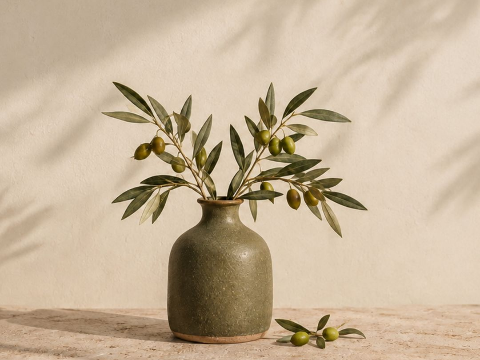
After480 × 360
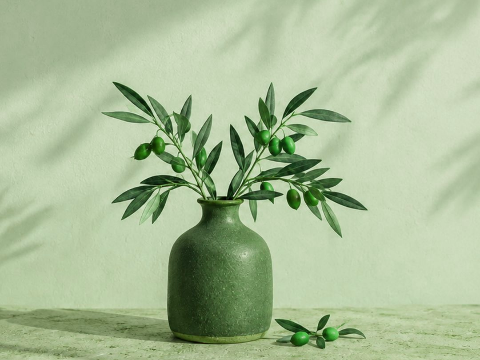
The same 480 × 360 photo after a hue shift. Every colored area is affected, including the background.
Download this example’s original PNG: Shift the colors in a photoKeep a PNG’s transparent areas
Hue shift: 30 · PNG output
Before480 × 360

After480 × 360
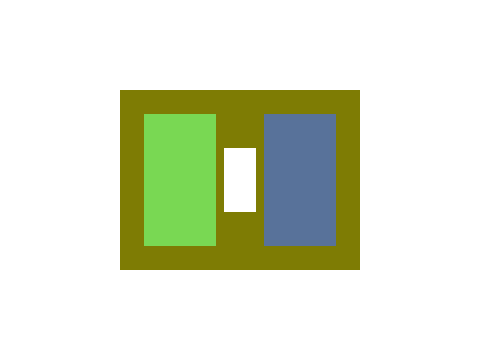
The colors change while the 480 × 360 canvas, transparent margins, and central hole remain. The checkerboard shows transparency; it is not part of the image.
Download this example’s original PNG: Keep a PNG’s transparent areasBefore you start
Shift the whole color wheel
- Hue shift rotates color relationships across the full image through a range equivalent to -180° to 180°.
- Use it to recolor the whole image; it does not target one selected color or region.
- Dimensions stay unchanged, and transparent pixels remain transparent only in formats that support them.